
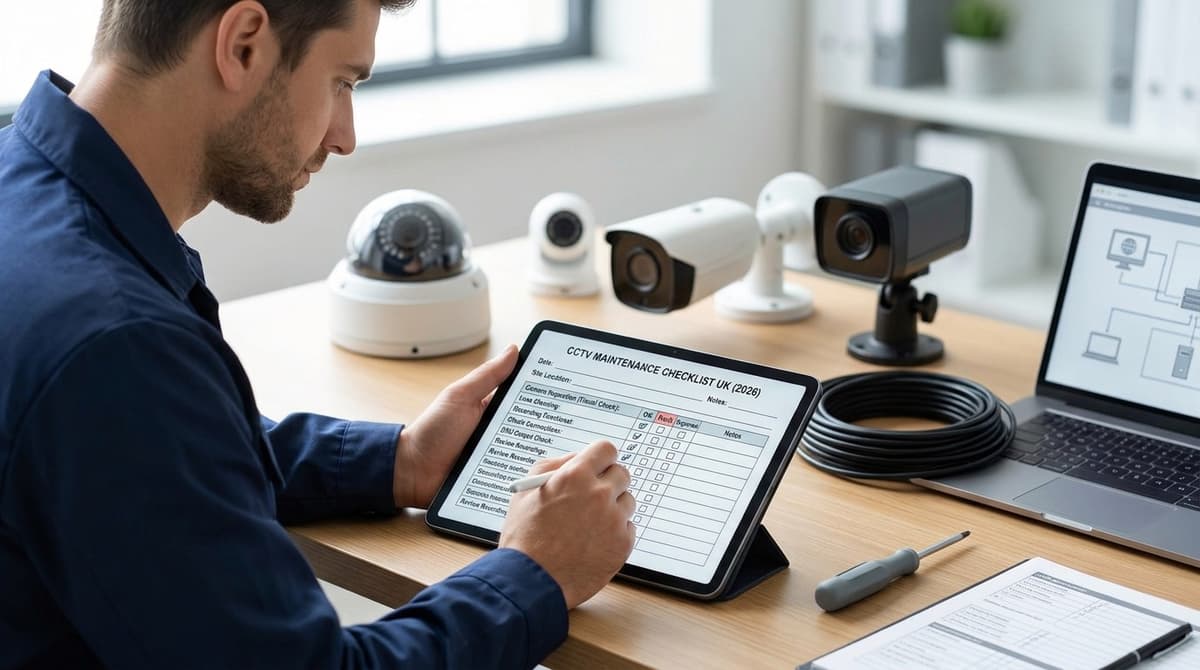
A CCTV maintenance checklist works best as three tiers: monthly checks for visible faults, quarterly checks for system health, and annual checks for hardware and compliance. Each tier feeds a log and a sign-off block, so the owner or installer can show evidence that the system was looked after. This page gives you those tables to print or copy into Excel or Word (there's no PDF to download). No template makes a system lawful on its own, because UK GDPR duties sit with the system owner, so the checklist includes data-protection and retention checks alongside cleaning, focus and recorder checks.
What belongs in a CCTV maintenance checklist template?
Group the checks by how often each one fails, not camera by camera: a short monthly pass for visible faults, a quarterly system-health check, and an annual compliance and hardware review. Published templates tend to lean heavily on camera and recorder fields. CCTVProx opens its recorder section with "verify all channels are recording", and SiteSurvey runs to 77 questions over six sections. UK data protection tends to get far less attention.
A service visit should confirm that every camera is recording, the clock is right, and the recorder holds the footage the customer's policy asks for, per SiteSurvey. That last check only works if the policy states a retention period. Take it from your CCTV policy (an ICO-style policy template is a common starting point) and write it into the checklist, so each visit compares it with the oldest footage on the recorder.
Cadence (general guidance, not a standard)
- Monthly: dirty lenses or domes, foliage or new obstructions in the view, loose brackets, any camera showing no image.
- Quarterly: recorder date and time, every channel recording, a test export of footage, drive health alerts, remote access.
- Annual: signage present and legible, stated purpose and policy reviewed, retention matches the policy, access list current, enclosure seals and cable entries, power supplies.
Who it suits
Installers handing over to clients need a signed report-style record with defects logged. Homeowners and small businesses managing their own systems can manage with a spreadsheet log. Householders whose cameras cover beyond their own boundary should check the ICO's guidance before skipping the data-protection rows.
Temporary site cameras are a separate case, because who carries out these checks depends on the hire terms. Our guide to hiring versus buying site CCTV covers that choice.
Monthly CCTV maintenance checks: what fails first?
Dirty lenses and housings usually fail first, so start each monthly round at the camera and finish at the recorder. Log every result on one maintenance sheet, whether paper or spreadsheet, so a missed month is obvious.
At the camera
- Lens and housing: Wipe the lens and dome or window, and clear spiders and cobwebs from the lens area. Look for condensation or water inside the housing, and check the picture is still in focus. The CCTVProx checklist lists the same camera-inspection items.
- Night mode and IR: Cover the lens or wait for dusk and confirm the camera switches to night mode. The IR LEDs should light, and nothing close to the camera, such as a bracket edge, a cobweb or the housing, should be bouncing glare back into the image.
At the recorder
- Recording: Confirm every channel is recording, then play back a recent clip from each camera. A live view proves nothing about what was stored. Judge focus and glare on a screen large enough to show them. Our guide to choosing the right CCTV monitor covers what to look for.
- Time and date: Compare the recorder's clock with a known source, such as a phone or a network time server. Wrong timestamps weaken footage as evidence, so correct any drift before it grows.
- Disk and alarms: Check the recorder's status screen for disk errors and any active alarms. The manufacturer's manual defines what each warning means. Treat a reported disk fault as urgent, because the recorder may be about to stop storing footage.
Quarterly and annual checks: PoE, firmware, passwords, privacy
Quarterly, check PoE connectors, glands and cable runs and review firmware; annually, check signage, privacy masks, retention settings and user access.
Quarterly
Walk the cable route and inspect each camera end. Look for corroded or half-seated connectors, glands that have loosened or let water track in, and runs that sag or pull on the connector. Our existing guides on PoE switches, Cat6 cable and power supplies cover the specifications, so the log only needs to record that nothing has drifted from what was installed.
For firmware, note the installed version in the log and read the manufacturer's release notes for that exact model. Update at a planned visit rather than mid-incident, then confirm every channel is still recording. After any update or camera swap, check the credentials haven't reverted to factory defaults. Our default-password guide explains why that matters.
Annual (UK, general guidance)
- Signage: still present, legible and accurate against the ICO CCTV guidance. Faded text, foliage cover or an out-of-date operator contact all count.
- Privacy masks: still covering neighbouring windows, gardens or other private areas. A knocked or re-aimed camera can leave a mask sitting in the wrong place.
- Retention: the recorder's setting matches the owner's written policy. Our retention article covers how to set it, so the log just records "matches" or "needs changing".
- Access: list every account, remove leavers' logins and confirm who still has remote viewing.
Searches for a cctv policy template uk or an ico cctv policy template turn up plenty of starting points, and our GDPR CCTV Policy Template UK is one. The maintenance log supports a written policy but does not replace it, nor any DPIA the owner may need. Which duties apply depends on who operates the system, whether it is domestic or business use and what the cameras view, so take qualified advice where unsure.
Fillable CCTV maintenance log and sign-off block
Copy the table below into a document or spreadsheet, leave every cell blank, and complete one row per camera check at each visit. The same columns work as a CCTV maintenance sheet in Excel or Google Sheets.
| Date | Camera / channel ID and location | Check performed | Pass / fail | Defect and action | Retention setting seen | Time offset | Initials |
|---|---|---|---|---|---|---|---|
Record the retention setting as the recorder shows it, not as someone remembers it. The checker then compares it with the owner's written policy and does not decide the period themselves. Time offset is the gap between the recorder clock and a trusted reference at the moment you check, with the direction noted.
Sign-off block
Follow the engineer-and-customer pattern used in Mitti's CCTV maintenance report: one signature from whoever did the work, one from whoever answers for the system.
- Engineer or inspector: name ____________ signature ____________ date ____________
- System owner or data controller: name ____________ signature ____________ date ____________
- Next-due date: ____________
Using it as handover evidence or a maintenance book
An installer can complete the log at commissioning and have the owner countersign. That gives a dated record of what was working, what the recorder was set to and how far the clock was out when the keys changed hands. Hand over the original and keep a copy.
A buyer should treat each signed sheet as a page in a CCTV maintenance book. File them in date order, with the CCTV policy and the signage record, so a missed check or a recurring fault shows up at a glance.
Which tools make a maintenance visit faster?
A handheld tester such as the Rsrteng IPC-5100C Plus is the one tool worth adding, because it covers three checklist rows in a single unit. It has a 5.4" colour display and supports IP plus TVI, CVI, AHD and CVBS, so it suits sites where older analogue runs sit alongside newer IP cameras.
Here is how it maps to the checklist:
- Cable tracing: the built-in cable tracer helps you identify which run is which before you blame the camera. If a run misbehaves, our guide on whether you need shielded CCTV cable helps you judge whether the cable itself should change.
- Powering a camera away from the switch: the PoE output lets you power a camera directly. That separates a dead camera from a dead switch port or recorder input.
- Viewing the feed: check the picture on the tester's own screen, or send it to a larger monitor through the HDMI or VGA output.
This is a tool for your own electrician or installer to carry. CCTV Master sells equipment and does not install. Fitting and servicing need your own electrician or an independent NSI or SSAIB installer. Stock and back-order status are shown live on the product page.
When you are ready to equip a visit, shop at cctvmaster.co.uk or ask about trade pricing.