
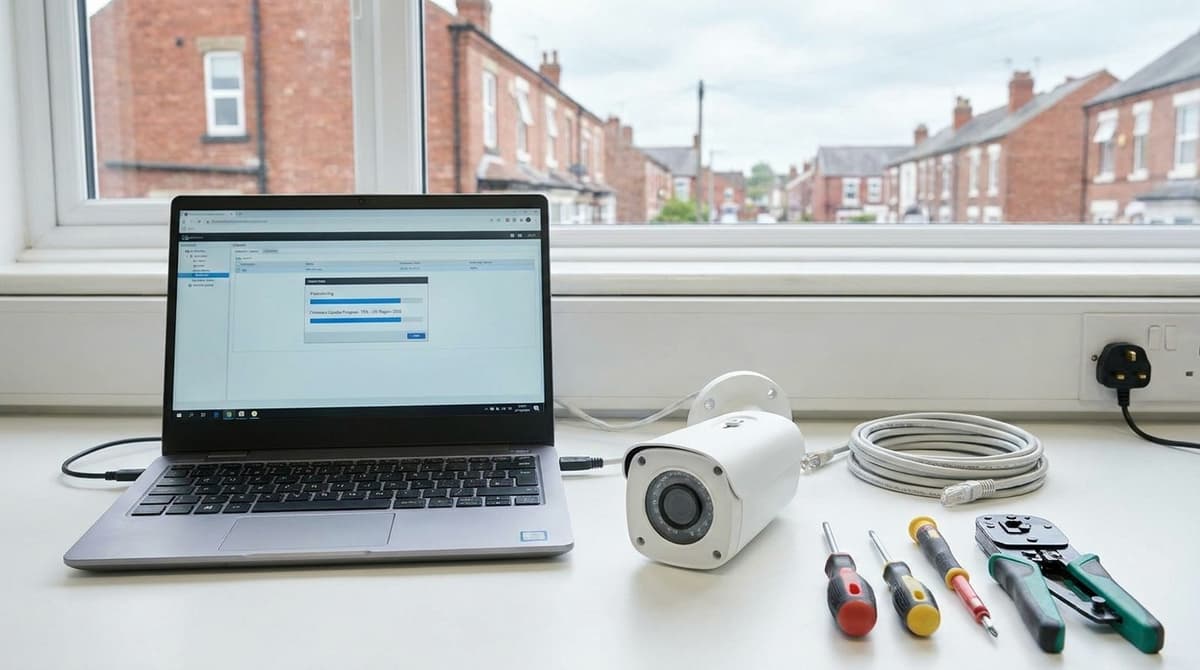
Updating Hikvision NVR or camera firmware is usually worth doing: Hikvision's own manuals recommend running the latest version, downloaded from its official website. The risk lies in how the update is done. A file built for a different model, a power cut mid-flash or a configuration that was never backed up can leave a unit that won't boot, or a site that has to be set up again from scratch. Confirm the exact model, save the config, secure power and the network, and know your recovery route before you press upgrade, and that risk stays low.
Is a Hikvision firmware update worth doing, and when should you hold off?
Usually yes. Hikvision recommends running the latest firmware, but update only when the release note fixes something that matters on your system.
Hikvision's network camera user manual recommends updating to the latest firmware for a better user experience. It also says the package should come from the official website or a local technical expert. That official source is the Hikvision firmware download page, which lists release notes beside the files.
Checking whether a unit needs it
This is general guidance, not a Hikvision rule. Before any Hikvision firmware update download, make two checks:
- Match the model exactly. Note the version installed on the camera or recorder. Then find the latest file listed for that exact model number, not a similar model in the same series.
- Read the release note. Look for a fix or change that matches a fault you actually have or a feature you need.
If the installed version is already the latest, there's nothing to do. If the note addresses nothing you use, there's little to gain either.
When waiting is the sensible call
Any firmware update is a change to a working system, so weigh what you'd gain against the chance of a disruption. If a site is stable and has no fault that the release note covers, it can normally stay on its current firmware until a relevant fix appears.
Older DVRs deserve more caution. Their firmware line may not match the files now listed, and loading a mismatched package can leave the unit worse off than the old firmware did.
If the recorder is close to retirement anyway, your time may be better spent planning a replacement. Our breakdown of Hikvision NVR 4, 8, 16 and 32 channel options can help with that.
How do you make sure you have the right firmware file for your model?
Match the file to your device's exact model and hardware platform, then check the release note before you flash. A mismatched file is the main way a camera gets bricked during an update.
On the UK/EU Hikvision portal, camera firmware is sorted into platform folders such as E8, E9, E10, G1, G3 and G5, with a separate "Customized firmware" folder. Two cameras can share a resolution and housing but run on different platforms. Choose the folder by the device's platform, not by how it looks.
Record what you have first
Before any Hikvision firmware update download, take a note or screenshot of these details from the camera's web interface or its label:
- the full model number
- the hardware version or platform
- the current firmware version and build
This record lets you confirm the match. It also tells you what you were running if the upgrade goes wrong.
Hikvision's own documentation often names the platform. For example, one network camera user manual is labelled G5-Web5.0. A camera's product series, which our guide to choosing the right Hikvision series explains, helps when buying. It does not replace the platform when picking firmware.
Where to download
Use Hikvision's own sources only:
- the Hikvision firmware download page
- the UK/EU portal, which itself points users to a newer firmware search feature
- Hik-Partner Pro, where you can find firmware by scanning the device's QR code or barcode, uploading a photo of its label, or entering the serial number
Avoid third-party mirror sites and files shared on forums. You cannot verify where those files came from or whether anyone has changed them.
Read before flashing
Open the release note, and any Read Me file in the download folder, before you upgrade. Check that your model is listed and note any conditions attached to the upgrade. A few minutes spent reading costs far less than recovering a bricked camera.
What should you back up and test before touching a live system?
Export each device's configuration file, record its network details, and trial the firmware on one non-critical unit of the same model before touching the rest.
Keep a configuration export and screenshots
No update can promise to keep your settings. That makes a saved configuration export the honest answer to "can I update without losing anything?" Save one export per device and label it with the model and current firmware version.
Also screenshot the pages you would least like to rebuild from memory:
- Network: IP address, subnet, gateway, DNS and ports.
- Users: accounts and their permissions.
- Recording schedules: per-channel schedules and event triggers.
An export may not restore cleanly onto a different firmware version. The screenshots are your fallback if it doesn't.
Write down the IP settings
A unit that comes back from a failed Hikvision firmware update in a reset state may drop to its factory address. Hikvision's network camera manual gives that default as 192.168.1.64. It may also need re-activation with a new admin password before you can log in.
If you have noted the original address, putting the camera back on the network takes minutes rather than an afternoon. Activation and lockout are covered in our separate guide to Hikvision default passwords.
Stage it on a spare first
Installers commonly run a new build on a spare or low-priority camera before touching the cameras covering entrances or tills. On a site with many cameras of one model, update a single unit and leave it running for a while. Check it still records, streams to the NVR and triggers events, then roll the update out to the rest.
If you have no spare of that model to test on, you can shop at CCTV Master or ask about trade pricing for a matching unit.
How do you run the update without interrupting the flash?
Protect the power, use a stable wired connection, and leave the device alone until it reboots on its own. A power cut while the firmware is being written is the most common way a recorder or camera ends up unresponsive.
Power and network first
Put the NVR or DVR on a UPS before you start; our UPS sizing guide covers runtime calculations. PoE cameras draw their power through the switch, so the switch needs the same backup. A protected camera on an unprotected switch is still exposed.
As general guidance, connect the PC by cable on the same subnet as the device, or use a direct, isolated link between the two. If you use a direct link, give the PC an address in the device's range. The network camera covered by Hikvision's G5 Web5.0 user manual ships with a default IP of 192.168.1.64. Avoid Wi-Fi and VPN connections, and turn off sleep on the PC so the upload is not cut off partway through.
An illustrative sequence
These steps are general guidance, and menu names vary by model and web version.
- Disconnect or pause remote access, including cloud apps and port-forwarded sessions.
- Open the device's local upgrade page. The manual directs you to its "Upgrade" settings, and Hikvision's How to upgrade firmware locally video shows the process. Then upload the file you downloaded for that exact model.
- Wait for the device to reboot. Do not refresh the page, close the browser or unplug anything.
- Log back in, check that the version number has changed, then confirm that live view and recording both work.
After an NVR update, a camera can occasionally fail to reappear. Working through the plug-and-play steps in our guide to adding a camera to a Hikvision NVR usually finds the cause faster than reflashing.
When the browse or upload button does nothing
A browse button that does not respond is usually a problem with the browser or its plug-in, not with the firmware file. As general guidance, try a different browser or the device's own local interface before you go any further.
Re-download the package from Hikvision's firmware portal only after you have checked it matches your exact model. Do not retry a hikvision firmware update that has failed until you know why it failed.
What if a Hikvision firmware update fails or the device won't boot?
Stop. Leave the device powered and record what you see before you try anything else. Repeatedly power-cycling or re-flashing without a plan can turn a recoverable fault into a dead unit.
Write down any error text from the web interface or recorder screen. Also note how the status LEDs behave (steady, flashing or off) and how long ago the upload finished. A support engineer will ask for these details first.
Work up the recovery ladder, gentlest step first
- Check SADP. Hikvision's SADP discovery tool scans the local network for its devices. If the camera or recorder still appears, it is communicating and may only need a second attempt. The camera user manual gives 192.168.1.64 as the default IP, so a device that has reset may show up at that address.
- Retry with the same correct file. Confirm the package matches the exact model on the Hikvision firmware download page, then upload it again from a PC on the same network. Hikvision's video on upgrading firmware locally shows the routine.
- Consider lower-level recovery only after that. Some models support a TFTP-style or serial reflash, but the procedure differs between products. Check that model's documentation or ask your supplier before you attempt it.
Hand it over with the right details
If a Hikvision firmware update has failed and SADP can't find the device, contact your supplier or Hikvision's local technical expert. That is the source the camera manual itself names for firmware. Quote the model, serial number, the original and attempted firmware versions, and the exact error text.
CCTV Master sells this equipment but does not install it. For hands-on help, use your own electrician or an independent installer, ideally one accredited by NSI or SSAIB. Once an AcuSense model boots again, our explainer on how Hikvision AcuSense works will help you check that its detection rules are still set up the way you need.