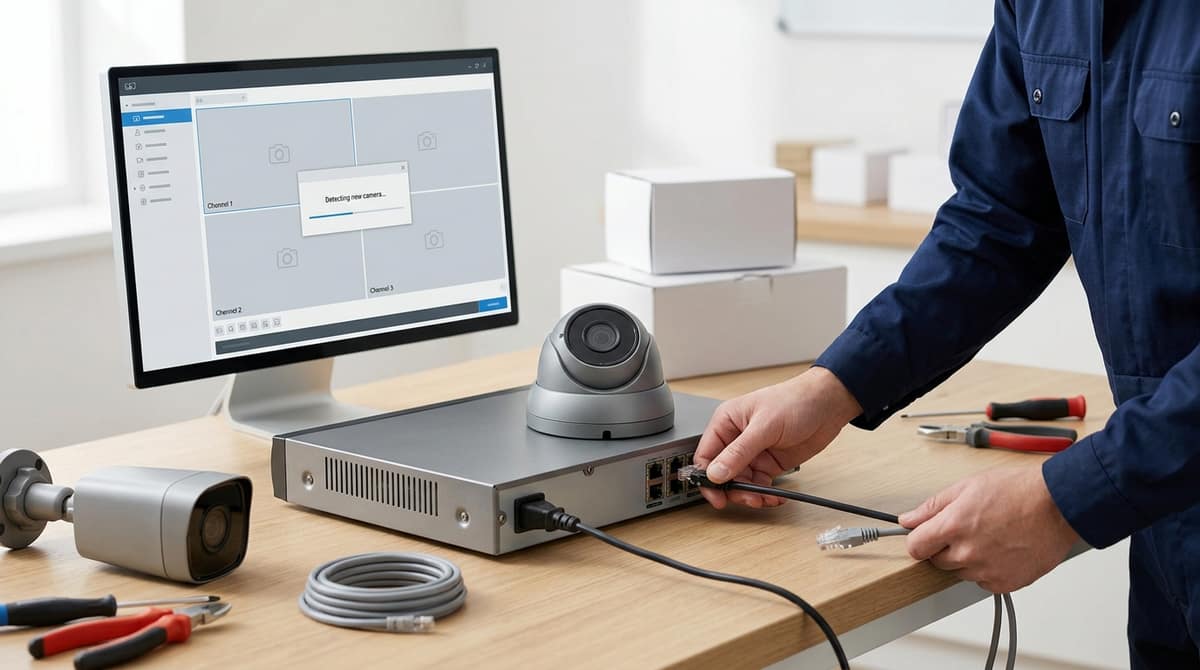
Adding a Camera to a Hikvision NVR
Plug a camera into the NVR's PoE port for automatic Plug-and-Play if passwords match, or add it manually by entering its IP address, username and password with a matching subnet.
How you add a camera to a Hikvision NVR depends on where it's wired: straight into the NVR's own PoE bank, or via a separate switch, Wi-Fi, or a different brand. Plug it into the NVR's PoE port and Plug-and-Play can add it automatically, provided the passwords match; anything else needs a manual add with a matching subnet and the correct password.
The first things to check when a camera won't show up are the password, the IP range, and whether it's wired into an external switch rather than the NVR's own PoE port.
How do I add a camera to a Hikvision NVR? (Plug-and-Play vs manual)
Where the camera plugs in decides which method you use: straight into the NVR's own PoE port calls for Plug-and-Play, while a camera sitting on a separate switch needs adding manually by IP address. Wiring topology decides which method is available, per the Hikvision plug-and-play guide.
Both routes work with genuine Hikvision PoE cameras, but the wiring decides which one is open to you, not personal preference.
When to use Plug-and-Play (direct PoE)
When the camera lands directly on one of the NVR's own PoE ports rather than an external switch, Plug-and-Play is the simpler route and the default choice. Connect the camera to the NVR's PoE port, then go to Camera Management → IP Camera, highlight the relevant channel, select Edit, set the Adding Method to Plug-and-Play, and confirm with OK, following the sequence in the same Hikvision guide.
The guide also notes that Plug-and-Play expects the camera's password to match the NVR's password, or to be set to 12345 — otherwise the one-touch adding step shouldn't be pressed at all.
Plug-and-Play only exists for cameras wired into the NVR's own PoE bank; an external switch means manual mode instead.
When the camera sits on an external switch
If the Hikvision camera sits on an external PoE switch on the same network as the NVR, rather than in one of the NVR's built-in ports, it has to be added manually by IP address. The Hikvision guide confirms this route works whether or not the camera's password matches the NVR — manual mode tolerates a different password on the IPC, which Plug-and-Play doesn't.
Connect the camera to a switch that shares the NVR's network, open Camera Management → IP Camera on the NVR, select an empty channel, choose Edit, set the Adding Method to Manual, and type in the camera's IP address, user name and password before confirming.
| Wiring |
Method |
| Camera on the NVR's own PoE port |
Plug-and-Play |
| Camera on an external PoE switch |
Manual, by IP address |
| Password rule |
Passwords must match (or be 12345) for Plug-and-Play; manual mode allows a different password |
Adding a third-party camera
The manual-by-IP method is also how an ONVIF-compliant Axis, Dahua, Uniview or similar third-party camera gets added to a Hikvision NVR — Plug-and-Play is a Hikvision PoE feature, not something third-party brands can use even when wired into the same port bank.
Native ONVIF discovery runs on port 80, which is how most third-party cameras register once you point the NVR at their IP address and enter credentials. Where a camera's stream doesn't register that way, Hikvision range's separate custom-protocol method lets you specify the raw RTSP stream path instead — typically streaming/channels/101 for the main stream and streaming/channels/102 for the sub stream, over port 554 — with the camera added via Configuration → System → Camera Management → IP Camera → Add, per Hikvision's custom protocol guide.
That same document notes Hikvision's own protocol runs on port 8000, separate from both ONVIF and the custom-protocol route — worth checking if a third-party camera won't register by either method.
If you're specifying a new system rather than retrofitting one, buying matched Hikvision PoE cameras and an NVR from the same range can reduce how much manual or ONVIF setup is needed later — browse PoE turret options like the Hikvision 5MP AcuSense Turret Camera with IR Night Vision at CCTV Master, or ask about trade pricing for larger multi-camera installs.
Why is my IP camera not showing up on my NVR? (Password, subnet and wiring)
Most "camera won't add" faults come down to one of three things: a password mismatch, an IP subnet mismatch, or the camera sitting on a separate switch when the NVR was expecting Plug-and-Play to find it automatically. Check these three in order before assuming the camera itself is faulty.
Fault 1: password mismatch
One-touch Adding fails if the camera's password isn't identical to the NVR's admin password or set to 12345 — the Hikvision PoE add guide states this directly. An IPVM forum thread from January 2016 describes a batch of cameras on Hikvision PoE NVR installs that appeared "dead" but were actually rejecting the default 12345 password, because the camera's activation flow demanded an 8-character alphanumeric password on registration.
The installer's fix was assigning the camera an IP address in the same range as the NVR's built-in ports, then adding it manually rather than relying on Plug-and-Play — the same distinction the Hikvision guide draws between One-touch Adding, where passwords must match, and Manual mode, where the camera's password can legitimately differ from the NVR's.
If One-touch Adding stalls, switching to Manual mode and entering the camera's actual credentials is generally the quicker fix than retrying it.
Fault 2: subnet mismatch
If a camera has already been activated on a different network, its IP address may sit outside the subnet the NVR's PoE ports expect, so the NVR can't see it during a search. This is the same fault the IPVM installer hit: reassigning the camera to an address matching the NVR's built-in range resolved it.
This tends to come up when reusing a camera that was previously connected to a router or a different NVR rather than added fresh.
Fault 3: wrong wiring expectation
Plug-and-Play only works when the camera is wired directly into one of the NVR's own PoE ports; if it's connected via an external PoE switch instead, the NVR won't auto-discover it the same way, and it needs adding manually with its LAN IP address. A reader in a similar position — an existing Hikvision camera already sitting on the network, being moved onto a new NVR — would face this exact fork between Plug-and-Play and manual addition.
This distinction matters whether you're fitting a standard Hikvision camera, a Hikvision PoE camera bought separately, or working through a Hikvision & HiLook 8-channel 2MP CCTV kit with its NVR-108MH-D recorder and two turret cameras — the PoE-port-versus-switch wiring decision is made before you ever open the menu.
If a camera still won't appear after checking password, subnet and wiring, it's worth confirming it's genuinely powered — a PoE camera on an underpowered switch can behave exactly like a discovery fault. Compatible cameras and PoE NVRs are available to browse at CCTV Master, with same-day dispatch on the day the order is placed.
How do I add a camera that's already on my network (not straight into the NVR)?
Use Manual mode: as long as the camera and NVR share the same switch or LAN, you enter the camera's existing IP address and credentials directly — no rewiring needed. This is the correct path for a Hikvision camera that's already wired to a network switch, powered independently, or left over from a previous recorder.
Steps
- Connect both the camera and the NVR to the same switch or LAN — they need to be on the same network, but not the same cable run.
- On the NVR, open Camera Management and select Manual rather than the auto-search option.
- Enter the camera's existing IP address, along with its user name and password.
- Click OK — the camera should appear online in the channel list without any further configuration.
This matters most for two groups of readers: anyone moving existing Hikvision cameras across to a new recorder, and anyone whose cameras are physically home-run to a PoE switch rather than into the NVR's own PoE ports. It's also the route to take if you're adding a Uniview camera, an Axis camera, or another third-party device to a Hikvision NVR, provided that camera supports ONVIF — Manual mode with the camera's own IP and login is the same mechanism, whether the camera speaks Hikvision's native protocol or ONVIF.
Manual mode is more forgiving on passwords than Plug-and-Play. Hikvision's own guidance on adding PoE cameras to an NVR confirms that with Manual mode the camera's password can differ from the NVR's, whereas Plug-and-Play (via One-touch Adding) only works reliably if the camera password already matches the NVR's password, or is set to a shared default.
That helps explain why auto-discovery can stall on cameras that have been active on-site for a while, with their own password already set — a camera that Plug-and-Play won't detect can still turn out to be alive and recording, and reachable once reconnected via SADP and added manually with its own credentials.
If you're building a fresh install rather than migrating one, browsing Hikvision PoE cameras at CCTV Master can reduce manual setup, since a new camera straight out of the box has no conflicting password already assigned to it.
Can I add a Dahua, EZVIZ, Axis, Imou, CP Plus or Uniview camera to a Hikvision NVR?
Third-party cameras can be added via Custom Protocol using RTSP on port 554 or via ONVIF, whichever the camera supports. Create the custom protocol first with the main stream path, then add the camera with its IP address and the protocol selected.
Yes, most third-party cameras go on via Custom Protocol using RTSP on port 554, or via ONVIF where the camera and NVR both support it — these are two different routes, not the same thing. Create the custom protocol first if you're going that way, then add the camera with its IP address and RTSP path.
The Custom Protocol route uses RTSP over port 554 rather than Plug-and-Play or One-touch Adding, which are built for Hikvision devices, and it's the documented method in Hikvision's custom protocol guide. It can apply to a Dahua, EZVIZ, Axis, Imou, CP Plus or Uniview model, though whether Custom Protocol or ONVIF is the better fit depends on what that particular camera exposes.
Per the same guide, the custom protocol's management port is fixed at 554, while Hikvision's own protocol runs on port 8000 and ONVIF on port 80.
Creating the custom protocol
Log into the NVR's webpage and go to Configuration → System → Camera Management → IP Camera, then click Custom Protocol. Select a slot such as Custom Protocol 1, give it a name, and enter the main stream path — streaming/channels/101 or ch1/main/av_stream for Hikvision-style stream naming — then enable and set the sub stream path to streaming/channels/102, and click OK.
Adding the camera itself
Back in Camera Management → IP Camera, click Add, enter the camera's IP address, select the Custom 1 protocol just created, and fill in the username and password before clicking OK. If the third-party camera exposes a different RTSP path than the Hikvision default, the camera's own manual is the place to confirm it, since path naming isn't standardised across brands.
This is a manual, per-camera process either way — there's no auto-discovery equivalent to adding a native Hikvision IP camera. Expect to repeat the relevant steps for each Dahua, Axis, Imou, CP Plus or Uniview unit, using whichever of Custom Protocol or ONVIF that camera actually supports.
If you'd rather avoid the path-matching altogether, sticking to one manufacturer's ecosystem — pairing a Hikvision ColorVu 3K Turret Camera with Audio with a Hikvision NVR, for example — means Plug-and-Play or One-touch Adding apply instead, with no RTSP or ONVIF configuration needed.
Related products from our own range:
- Hikvision ColorVu 3K Turret Camera with Audio — Hikvision 3K ColorVu turret camera with 24/7 colour night vision, F1.0 aperture and built-in audio. IP67 rated, 20m white light range, switchable signals. £22.99.
- Hikvision 5MP AcuSense Turret Camera with IR Night Vision — Hikvision DS-2CD3356G2-ISU 5MP turret camera with AcuSense detection, 40m IR night vision, and PoE power. IP67 weatherproof for outdoor security.
- Hikvision 4K Two-Way Audio Turret Camera — 8MP 4K turret camera with built-in two-way audio over coax, 30m IR night vision, and IP67 weatherproofing for CCTV systems.
- Hikvision 8MP Smart Hybrid Light Turret Camera 4K — Hikvision 8MP turret camera with 4K resolution, Smart Hybrid Light (IR + white), two-way audio, human/vehicle detection, PoE power, IP67 weatherproof housing.