
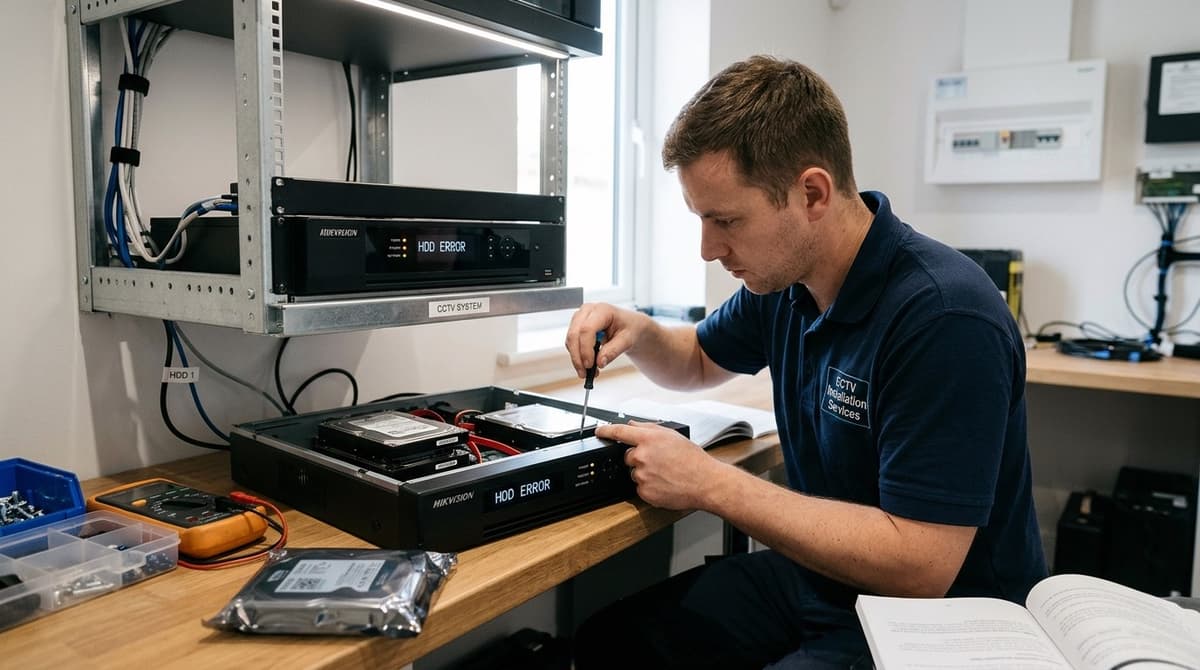
Most Hikvision HDD errors come down to loose cabling, an uninitialised drive or a failing disk, and the status shown under Storage Devices tells you which. Check it in the main menu under Storage/HDD, then match it to the fix: reseat the cables for "Abnormal" or "No HDD detected", initialise the drive for "Uninitialised" or "Error", and replace the disk if the fault persists. Formatting erases everything on the drive, so recover any footage you need before you start.
How do I fix a Hikvision HDD error from the status shown?
Open Storage Devices, read the status line, and act on it: reseat and format for Abnormal, check power and SATA for No HDD. On most recorders the path is Main Menu > Storage (or HDD) > Storage Devices, though labels vary by firmware. The same steps apply whether it is a Hikvision DVR HDD error or an NVR one.
| Status shown | Likely cause | Fix |
|---|---|---|
| Abnormal | Drive misbehaving or faulty | Power off, reseat the cabling, format, then replace the drive if it persists (Hikvision Portal) |
| No HDD detected | No power, loose SATA lead or dead drive | Check power and SATA cables, try another bay, then replace the drive |
| Does not exist, or a blank line | Stale entry for a drive that is no longer fitted | Delete the entry and remove the drive |
| Error or Uninitialised | Drive not yet prepared for this recorder | Initialise it; a new drive must be initialised before it records |
Formatting and initialising both wipe the drive, so export any footage you need first.
Confirm it in the log
Go to Menu > Maintenance, or Configuration > System > Log, and filter Major Type by "Exception". Entries such as HDD Exception, Disk Exception and "HDD error" tell you the recorder itself has flagged the drive. If the log shows one of these but the status line looks healthy, repeat the cable check before you spend money on a replacement.
What do Abnormal, Error and Uninitialised mean, and is formatting safe?
Abnormal, Error and Uninitialised are the recorder's drive-status labels; formatting is safe only after reseating the drive and saving any footage you need.
Uninitialised usually means the disk has not yet been formatted for the recorder, which is typical of a new or replacement drive. Abnormal and Error mean the recorder cannot use the drive properly, through either a hardware fault or a poor connection.
Reseat first, then format only if the status stays
Power the recorder down, check the data and power leads are firmly seated at both ends, then power it back up. An Abnormal status can be nothing more than a loose connection, and the Hikvision Portal sequence moves on to formatting only if the status persists.
Formatting erases the disk. As general guidance, copy off any footage you need before you start, and don't count on getting it back afterwards.
Fitting a new or replacement drive
As a generic sequence:
- Power the recorder down.
- Fit the drive.
- Power the recorder up.
- Open Storage Devices.
- Select the drive and choose Initialise.
Telling a failing drive from a fault elsewhere
If live view looks fine in Hik-Connect but playback returns nothing, the drive is the prime suspect. Hik-Connect HDD alerts only mirror the recorder's own status, so clear the fault on the recorder rather than in the app.
Why is my Hikvision HDD not detected, or showing a blank line?
Power the recorder off, check the power and SATA connectors, try another bay, and only then replace the drive. The manufacturer's guidance on the beeping that accompanies an HDD error sits on the Hikvision Portal.
- Switch the recorder off and unplug it from the mains.
- Reseat both the power lead and the SATA data cable on the drive.
- Move the drive to another bay. Not every recorder has a spare, so check your model against the Hikvision NVR: 4, 8, 16 & 32 Channel range.
- If the drive is still missing, replace it.
A blank line, or an entry reading "does not exist", is a stale record of a drive the recorder can no longer find. Delete that entry in the storage menu first, then remove the drive.
General guidance (not a Hikvision procedure)
- Listen for spin-up. Power the recorder on and listen for the disk. Silence may point to a power fault rather than a data one.
- Test before condemning. A dead bay or a tired SATA cable looks identical to a failed disk. Try the drive in another bay before you write it off.
Opening the recorder is a job for your own electrician or an independent NSI or SSAIB installer. CCTV Master sells equipment and does not fit it. Drives sold with a recorder here are supplied pre-fitted before dispatch.
Why is it beeping, or live but not recording?
A Hikvision recorder beeps on any exception, and five sharp beeps usually mean the drive, but other faults trigger it too. Hikvision's support portal covers the audible warning that reports an HDD error, though the buzzer fires for several non-drive events:
- HDD full with overwrite switched off
- Network disconnected
- IP conflict
- Illegal login
- Video signal exception
The recorder's exception log shows which one fired, so read it before assuming a failed disk.
Silencing the buzzer
If you want a hikvision hdd error beeping off, do it per exception rather than globally. Open the Exception settings, pick the exception type, go to Linkage Action and untick Audible Warning. Leave "HDD Error" audible so a genuine drive failure still alerts you.
Signs the recorder has stopped saving
- The REC or HDD front-panel light is off or flashing red.
- The playback timeline is empty.
- Cameras are live on screen but nothing is being stored.
PoE and power faults (general guidance)
A PoE budget overrun or a failing recorder power supply tends to appear as a camera going offline or a video-loss alert, not as an HDD status. Check each channel's status before blaming the drive. If only some channels have dropped while the disk shows healthy, look at the power and cabling first.
Surveillance-rated or desktop drive: when do I replace the drive, and when the NVR?
Replace the drive if it fails in a second bay or stays Abnormal after formatting; suspect the NVR if a known-good drive fails too.
Whether a Hikvision HDD is "good" depends on drive class more than the badge on it. Surveillance-rated drives are built for continuous recording, and as general guidance, desktop drives are a common source of repeat failures in recorders. No brand verdict is worth giving without test data, so choose the class first.
Before buying, check the recorder's datasheet or Hikvision's HDD compatibility list for supported capacity and drive type. Both vary by model, so take the limits from the datasheet rather than assuming any drive will do.
Which part is at fault
- Replace the drive if it fails in a different bay with the data and power cables reseated, or if the status still reads Abnormal after a format.
- Suspect the NVR (SATA ports or power supply) if a known-good drive also fails across bays. This is general guidance, not a Hikvision-published rule.
If the recorder is the culprit, our guide to choosing the right Hikvision series helps you match a replacement to your cameras.
Size the replacement properly
A new drive that fills early brings the problem back. The sum is:
required storage = camera bitrate × recording hours × days
Work it out per camera, add the results together and convert the bitrate into the same units as the drive capacity. Use each camera's actual configured bitrate, not a guess.