
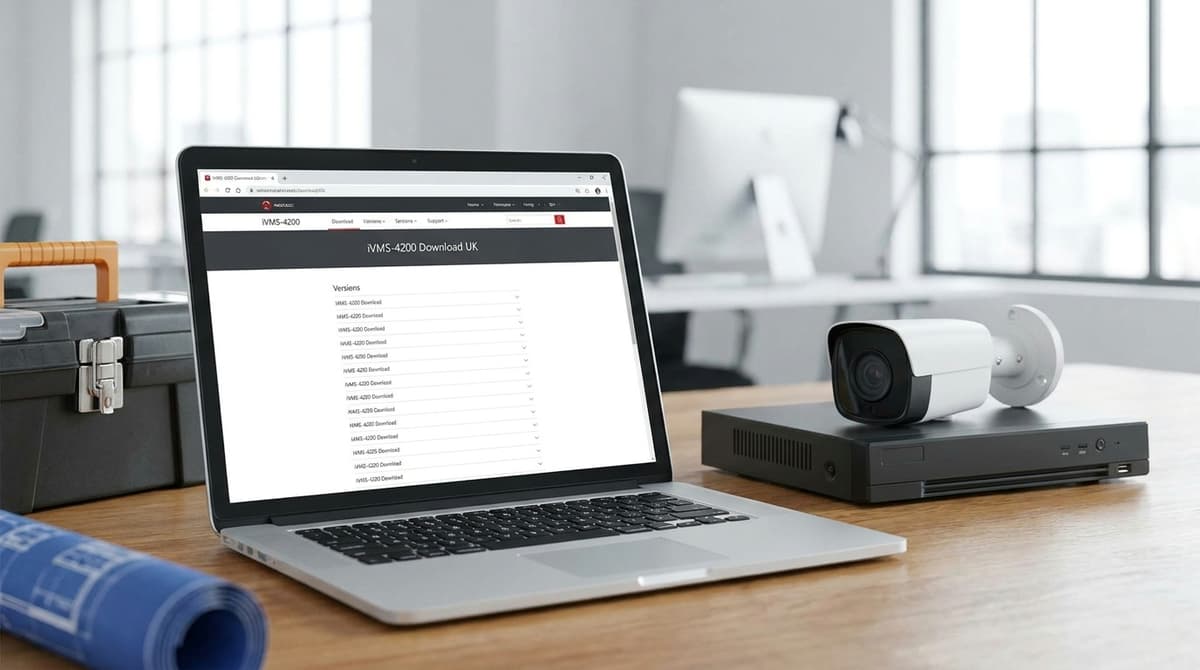
iVMS-4200 is Hikvision's free client software, offered in Windows and Mac editions, for adding recorders and cameras to a PC for live view, playback and device configuration. The Hikvision Canada product page describes it as free software "compatible with most Hikvision hardware", covering live feed viewing, playback, video recording and remote searching.
If your system shows "device offline" or won't play back recordings, the software itself is not always the cause. Check a mismatched subnet, wrong credentials, an unsupported stream setting and incorrect time settings first. Correct time settings also help exported footage show the right UK time, including BST.
Where do I download iVMS-4200 in the UK, and which version?
Download iVMS-4200 from Hikvision's own download pages, and take the version number from Hikvision's live UK page. That also answers whether it is safe: an official Hikvision download page is the preferred source. A copy from a mirror site or file-sharing service can't be checked against Hikvision's own listing, so we'd avoid those.
Version numbers differ by region
Hikvision runs regional download pages, and they don't always list the same build. The Hikvision USA software page lists iVMS-4200 V3.13.2.5_E, for example, while the Hikvision UK software page and Hikvision Global each carry their own listing.
Because these pages change, any version number printed in an article will go out of date. For the iVMS-4200 download UK users need, open the live UK page on the day you install and use the build it lists.
Which edition you need
- iVMS-4200: the standard client, and the "iVMS-4200 for PC" build you install on your computer.
- iVMS-4200 Mac: the macOS client, listed as a separate download on the global page.
- iVMS-4200 AC: listed as its own product on Hikvision's regional pages. Read the live page before you assume what iVMS-4200 AC includes. The core client also covers access control, according to Hikvision Canada.
- iVMS-4200 Lite: people search for it, but it did not appear on the Hikvision pages we captured. Check whether your regional page offers it.
Is it discontinued?
No. iVMS-4200 is still listed as a current download on Hikvision's UK, US and global pages. Hikvision's UK page describes it as software for configuring and managing Hikvision devices.
Hik-Connect, HikCentral Lite and HikCentral Professional appear next to it on the UK page. Hikvision lists them alongside iVMS-4200, not as replacements for it.
If you are still choosing the hardware, our Hikvision camera guide for UK buyers explains how the camera series compare.
How do I add cameras and NVRs in iVMS-4200 over a LAN?
Put the PC and the device on the same subnet, find the device in the client, activate it with a new admin password, then add it.
Menu names and layouts vary between client versions and device firmware. Treat the outline below as general guidance and check it against your own device's user manual:
- Open the client and find the device in its list of devices detected on the network.
- Select a device shown as inactive and click Activate.
- Create a strong admin password and confirm it. Record it somewhere safe, because you will need it to add and manage the device later.
In most set-ups the device has to sit on the PC's subnet before the client can manage it. If the listed IP is in a different range from your PC, the client usually lets you change the device's network settings. You can then either enter an address in the PC's subnet or switch the device to DHCP. Your device manual gives the exact option names for your version.
When the client won't cooperate
If your camera supports live view in a web browser, try that next. A camera that plays in the browser but not in the client proves the camera and network path are working. It narrows the search, but it does not prove the client software is at fault.
Once a device is working, give every recorder a static IP or a DHCP reservation on the router. Without one, a router reboot can give the recorder a new address. The client then shows it offline again, even though nothing is wrong with the device.
Hikvision describes the free client as compatible with most Hikvision hardware. A site that mixes brands therefore needs more planning, and our Hikvision vs Dahua comparison covers how to make that choice before you buy.
Why does iVMS-4200 show a device as offline?
Typically the PC cannot reach the device. Its address may have moved or sit on another subnet, the device may never have been activated, or the client may be sending an outdated password.
Checklist of common causes
- Subnet mismatch or a changed IP. This is a sensible first check. If DHCP has given the recorder a new address since you added it, or it sits on a different subnet from the PC, the client keeps trying an address that no longer answers. Correct the entry in the device list, or give the recorder a fixed address.
- Device still inactive. A new Hikvision unit has to be activated with an admin password before a client can log in. Until then it may show up in a network search but will not connect.
- Wrong stored password. This one can make things worse. Many Hikvision devices have an illegal login lock that blocks access after repeated failed attempts. The location of the setting, the number of attempts and the lock duration vary by model and firmware, so check your own device's manual. Fix the password in the client first, then wait for any lock to expire.
- Port or network path. Check that the service port in the device entry matches the recorder's own setting. A managed switch, a VLAN or a firewall between the PC and the recorder can also block the traffic.
If you need a refresher on where the recorder sits on the network, our NVR CCTV Explained article covers it. IP door stations added to the client go through the same checks, and our comparison of Hikvision 2-wire and IP intercom explains how each type connects to the network.
Remote sites
For devices on public networks, Hikvision's route is Cloud P2P. The Hikvision iVMS-4200 product page lists it for cross-domain device management. Whether iVMS-4200 works over Starlink has been asked in a Starlink UK group without a confirmed answer.
On shared-address (CGNAT-style) connections, inbound port forwards often fail, so P2P is likely the more practical option. Confirm this with your provider. Even on a normal line, don't open recorder ports to the internet as a quick fix, because that exposes the login page to anyone who scans for it.
Why won't playback work, and how do I fix it?
When playback fails, the cause is usually one of four things: nothing was recorded, the wrong device is selected, the PC can't decode the video, or the clocks disagree. Check them in that order, since the first two are the quickest to rule out.
- Recording schedule and disk. On the recorder, confirm that the camera's recording schedule covers the date and time you're searching. Then check that the drive actually holds footage for that window. An empty timeline often means nothing was written to disk rather than a fault in the software.
- Device and stream. In an NVR system, play back from the recorder rather than the camera, because the NVR holds the footage. On a larger unit, make sure you've picked the right channel. Our guide to 4, 8, 16 and 32-channel Hikvision NVRs explains how channels map to cameras. It's also worth confirming which stream you're requesting.
- Codec support. Many current cameras encode in H.265. If footage won't open or plays badly, check whether the PC running the iVMS-4200 client can decode H.265.
- Clocks. If the PC and the recorder disagree on time or time zone, a search can land on the wrong hour.
Hikvision lists playback and remote searching as core iVMS-4200 functions. Menu layouts shift between releases, so use the user manual for the version you've installed to find the exact playback and file-management screens.
If your question is how far back footage goes, that depends on retention rather than playback, and our separate retention guide covers it.
How do I export iVMS-4200 footage so it's usable as evidence?
Export the clip in the recorder's native format, then add an MP4 or AVI copy for anyone who can't run that player, if your version offers those formats. Hikvision lists playback and remote searching among the iVMS-4200 client's core functions. Export options vary by version, so check the manual for your release.
Why keep the native file
Depending on the device and firmware, the native export may keep timestamp and watermark information from the recorder. A converted MP4 is easier to share, but it is a step further from what the recorder actually captured. Hand over both versions, and label clearly which one is the original.
Check the clock before you export
Compare the time shown on the recorder with a trusted clock and write down any offset, even a few seconds. Then check the device's time zone and daylight-saving setting.
UK clocks change in March and October. Footage recorded around those changeovers can be read an hour out if the recorder's DST setting is wrong or was changed partway through. Write the offset next to the export so nobody has to work it out later.
Chain-of-custody habits
- Record who exported the footage, when they did it, and which PC and recorder it came from.
- Store the original export untouched, ideally on write-once or read-only media.
- Make edits, trims and stills from copies only.
- Log every handover, for example to the police, an insurer or a solicitor.
These are general good-practice habits rather than a formal standard. The police or your insurer may have their own requirements, so ask them first.
UK law
If footage shows identifiable people, it is likely to be personal data under UK GDPR. The ICO's CCTV guidance expects you to disclose it only for a legitimate reason and to keep a record of what you shared and why. The rules for domestic systems depend on where the cameras point. If you're unsure, check the ICO's current guidance for your situation.